Face Watchlists
Face watchlists are collections of images that can be used for face recognition. You can create an watchlist for a group of people, such as staff members, or one for each individual.
Requirements
- Only JPEG images are currently supported.
- The minimum recommended face size (NOT the whole image) is 120x120 pixels for reliable recognition.
- The maximum supported resolution of an image is 3840 × 2160 pixels (4K).
- The maximum supported number of images in a single watchlist is 1000.
- Each image should contain exactly one person, facing the camera.
Create a Watchlist
-
Create a folder on your computer (e.g.
Staff). -
Inside the first folder, create a subfolder for each person (for example:
Staff/Employee1). The subfolder name should match the person's name or a term by which they are otherwise identifiable. You can create multiple subfolders within the main folder, one for each individual.
File structure example
-
Put images (multiple are recommended) of the respective entity's face into the entity's subfolder:
Staff/Employee1Staff/Employee1/1.jpg -
Open the ForensiQ web interface. Navigate to Settings Face Watchlist.
-
Click on the Upload from your computer button on the top right of the page.
-
Type a name for your watchlist (e.g. "Staff") and select the folder you created earlier.
-
Click + Create Watchlist. The watchlist will be created and indexing will begin.
- Open the ForensiQ web interface. Navigate to Settings Face Watchlist.
-
Click on the + Create Watchlist button on the top right of the page.
-
Type a name for your watchlist (e.g. "Staff") and select Create from existing images.
-
Click + Create Watchlist.
-
Click + Add Person to add a new entity to the watchlist. Type the name of the person and upload one or more images, then click + Add Person.
-
Repeat step 5 for each person you want to add to the watchlist.
Edit a Watchlist
-
Click the Watchlist you would like to edit.
-
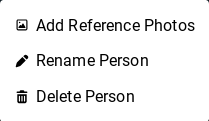
To add images to an entity, click on the menu on its row select Add Reference Photos. Upload the image(s) you would like to add.
-
To remove an entity, click on the menu button on its row click Delete Person.
-
To delete the watchlist, navigate back to the list of watchlists, tick the checkbox of the one you would like to remove Delete.
Note that a watchlist cannot be deleted if it is referenced by a Search or Live Rule. First delete the Search or Live Rule, then delete the watchlist.
Using a Watchlist
Watchlists can be used in Face recognition, Face finder and Line crossing (face recognition) to filter for faces in videos.