Adding Indexers
Use this guide to register additional indexer nodes with an existing ForensiQ installation. First complete the prerequisites and install each indexer node using the online or offline installation guide.
TLS encryption
Adding Indexers with TLS encryption requires installation of the core node with TLS support. In that case, follow the steps in the Add Indexers with encryption tab below.
- Go to Settings Indexers.
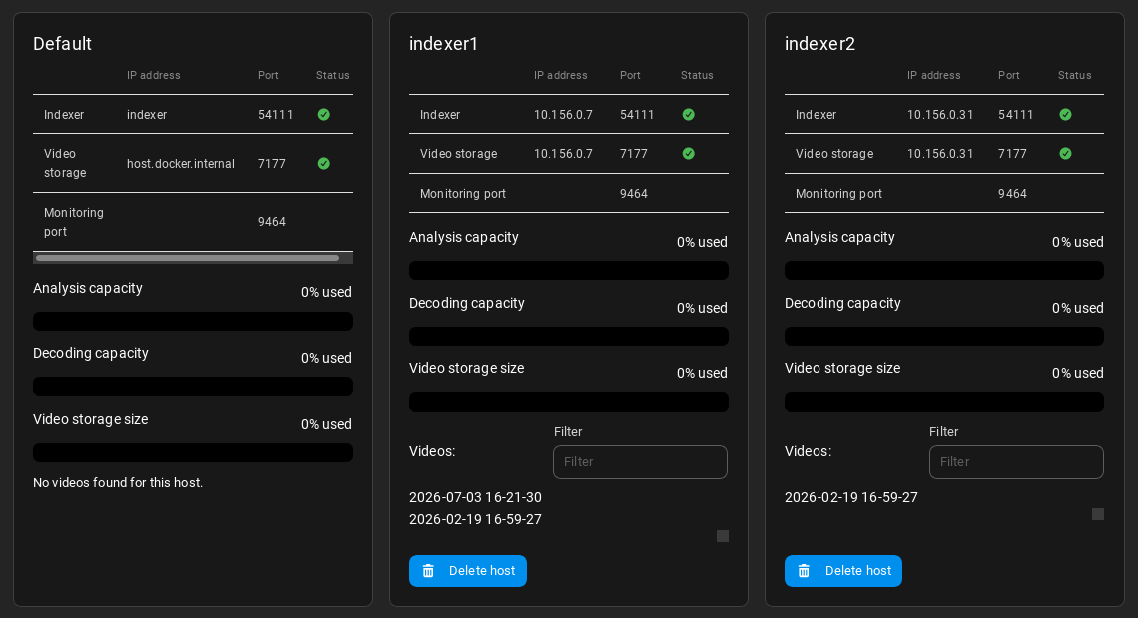
Note the port number for the Video storage service, above, changed from earlier versions to 7177.
All Indexers added to ForensiQ are listed here, along with their properties. You can also add new Indexers and delete existing ones.
-
Click the + Register new host button at the top right.
-
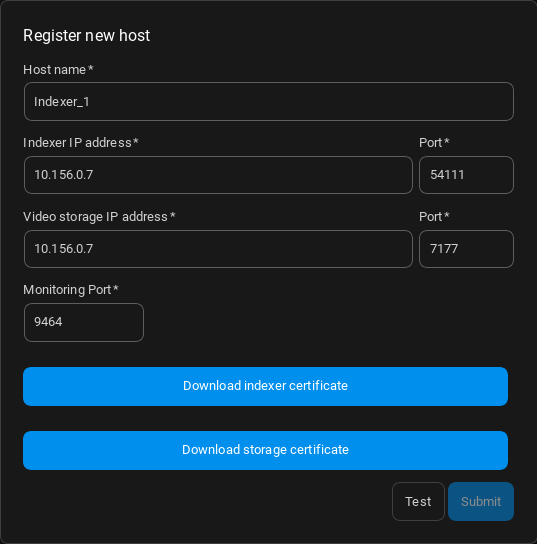
Fill in the form, then click Test to check the connection to the Indexer. If the connection is successful, click Submit to add the Indexer to ForensiQ.
- Go to Settings Indexers.
Note the port number for the Video storage service, above, changed from earlier versions to 7177.
- Click the + Register new host button at the top right. Fill in the form, then download the storage and indexer certificate files.
-
Log in to the remote indexer node via SSH.
-
Navigate to the
/opt/u-query/directory open the.envfile in a text editor. -
Set the
INDEXER_NODE_TLS_ENABLEDvariable totrue. -
Copy the downloaded json files:
-
indexer-cert.json to
/opt/u-query/config/certs/indexer-cert.json -
storage-cert.json to
/opt/u-query/config/certs/storage-cert.json
-
-
(Re)start the services:
-
Return to the Settings Indexers page on the core node and click Test to check the connection to the Indexer. If the connection is successful, click Submit to add the Indexer to ForensiQ.